
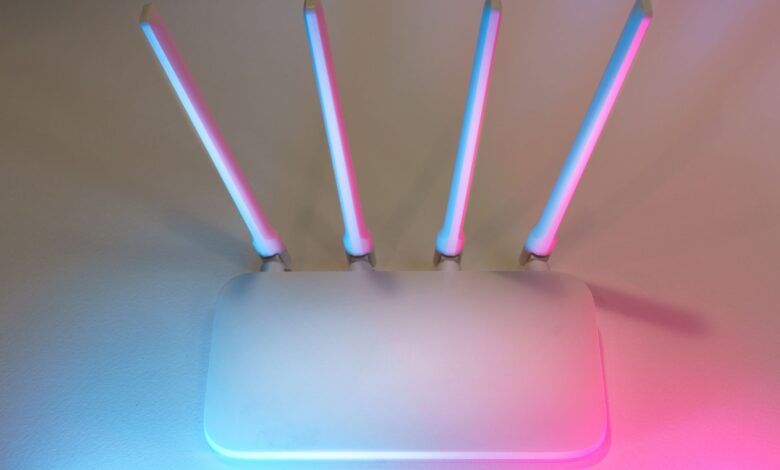
Fast internet does not stop your stick from pausing. Your phone can show 200 Mbps while the TV stick still buffers. Steady 4K needs about 25 Mbps on a clean channel, and listings show Fire TV Stick 4K Max as Wi-Fi 6E tri-band and Roku Streaming Stick 4K as dual-band Wi-Fi 5, which is why signal problems cause most buffering even when speed tests look fast.
Wi-Fi Alliance certification and IEEE 802.11ax explain buffering better than anecdotes, because analyzer scans show crowding. Older ac sticks on busy 2.4 GHz suffer interference and bufferbloat, while ax adds OFDMA and 6 GHz clears contention, and screenshots of crowded 2.4 GHz versus clean 5 GHz plus a checklist show how to fix band, channel, and placement without new gear.
Why does my streaming stick keep buffering on fast Wi-Fi even though speed test is high?
Your phone speed test and your stick’s 4K stream take different paths. A phone test measures a short burst over TCP to a nearby server using 2×2 MIMO with strong antennas. A streaming stick needs sustained 15 to 25 Mbps for minutes over UDP and TCP, and that flow is sensitive to signal strength, congestion, and queueing.
The stick usually sits behind the TV, which blocks signal and lowers RSSI, the received power level. It also has a smaller antenna than a phone. On 2.4 GHz, that weak link shares airtime with neighbors, microwaves, baby monitors, and Bluetooth. Many devices sharing one OFDM slot means each waits longer, so the buffer empties.
fast internet doesn’t guarantee streaming because the bottleneck is often the last wireless hop, not the plan coming into the home. The article notes the issue is usually a hardware limitation or environmental problem rather than ISP speed. 4K streaming requires at least 25 Mbps and Wi-Fi signal problems are the most common cause of buffering.
Roku Streaming Stick 4K, Fire TV Stick 4K Max, and Chromecast with Google TV each handle this differently, and the fix is almost always band, channel, and placement — not your ISP plan or the HDMI port you picked.
Stage boxes showing phone speed test burst versus streaming stick sustained 25 Mbps flow through congested 2.4 GHz channel
How much bandwidth 4K HDR really needs and why sustained matters more than peak
Peak speed is not the same as sustained delivery. Platforms publish steady needs, not burst. Netflix 15-25 Mbps for 4K Ultra HD, Disney+ 25 Mbps, Prime Video 15-25 Mbps table shows the range. Netflix 15 Mbps UHD Disney 25 Mbps notes extra headroom helps HDR and audio avoid pauses.
Buffering starts when playback drains faster than download fills. playback speed vs buffer fill explains the buffer empties when incoming rate falls below outgoing rate. A short dip below 25 Mbps for 30 seconds is enough to pause 4K HDR, even if your burst test showed 200 Mbps a minute earlier.
Table comparing platform 4K bandwidth needs 15-25 Mbps sustained versus typical burst speed test result
Try this before you buy: Run a speed test on your phone next to the TV, then open Fire TV Settings > Network or Roku Settings > Network > About and note signal strength and whether you are on 2.4 GHz or 5 GHz. If RSSI is below -67 dBm or you are on crowded 2.4 GHz, placement or band is the issue, not plan speed.
Why older sticks struggle on crowded 2.4GHz: co-channel interference and bufferbloat
2.4 GHz has only three non-overlapping channels: 1, 6, and 11. All nearby routers on the same channel must take turns. Baby monitors, microwaves, and Bluetooth also use this band. Wi-Fi analyzer crowded channel shows how to spot overlap and find the least crowded channel.
When too many networks overlap, co-channel interference rises and usable airtime falls. Older 802.11ac sticks often use a single spatial stream on 2.4 GHz, so they wait longer for a clear slot. At the same time, oversized buffers in some routers queue packets instead of dropping them. That is bufferbloat.
bufferbloat large buffers notes that when a router uses excessively large buffers, even fast networks become unusable for real-time video. bufferbloat queuing delays explains that too many queued packets increase delays and degrade streaming. The result is high latency even though throughput looks okay for a moment.
Wi-Fi 6 fixes part of this with OFDMA. OFDMA subcarriers shows Wi-Fi 6 needs four times as many subcarriers as Wi-Fi 5, with 802.11ac using 64 to 512 and 802.11ax using 256 to 2048. OFDMA divides a channel into smaller resource units so multiple devices can share the same airtime efficiently.
In How-To Geek’s Fire TV Stick buffering report, the problem was described as fast connection doesn’t mean speeds get to Fire TV Stick. The solution that came up repeatedly was moving the stick off TV USB power to a wall adapter and switching to the 5 GHz band to avoid congestion, because TV USB often delivers low power and 5 GHz has more clean channels.
In Dignited’s guide, readers noted congested WiFi channel causes slow speeds behind the TV in the evenings. The community fix that came up was using a Wi-Fi Analyzer app to scan the least congested channel, picking the emptiest of 1, 6, or 11, and moving to 5 GHz which is faster and less crowded. Dell Wi-Fi interference channel selection confirms 2.4 GHz should use only 1, 6, or 11 non-overlapping and 5 GHz should use low-utilization channels 36 to 48 or 149 to 165 to reduce contention.
Comparison boxes showing crowded 2.4 GHz, cleaner 5 GHz, and open 6 GHz with estimated sustained throughput for each
Wi-Fi 5 vs Wi-Fi 6 vs Wi-Fi 6E vs Wi-Fi 7: what OFDMA and 6GHz change for streaming
Wi-Fi 5 is IEEE 802.11ac. It uses OFDM, where one user occupies the whole channel at a time. Theoretical max is about 3.5 Gbps with wide channels and multiple streams, but no OFDMA.
Wi-Fi 6 is IEEE 802.11ax. IEEE 802.11ax Wi-Fi 6 operates on 2.4 GHz and 5 GHz and is marketed as Wi-Fi 6. It adds OFDMA and 1024-QAM, which improves efficiency in crowded places. Wi-Fi 6 equals 802.11ax confirms Wi-Fi Alliance uses Wi-Fi 6 to refer to IEEE 802.11ax, the sixth generation.
Wi-Fi CERTIFIED 6 program from Wi-Fi Alliance delivers the best experience based on IEEE 802.11ax. The certification tests interoperability and mandatory features, not range or throughput on your wall. It says nothing about battery life or build quality.
Wi-Fi 6E is the same 802.11ax foundation plus 6 GHz. Wi-Fi 6E adds 6GHz notes both Wi-Fi 6 and Wi-Fi 6E are based on 802.11ax, but 6E adds newly available 6 GHz band. That band is clean today because fewer devices use it, so contention is lower.
Wi-Fi 7 is IEEE 802.11be. IEEE 802.11be MLO brings Multi-Link Operation, enabling devices to use multiple links to the same access point across 2.4, 5, and 6 GHz at once, reducing latency. Wi-Fi 7 also adds 320 MHz channels and 4096-QAM on top of MLO. The Wi-Fi Alliance certifies devices against the generation they claim, and FCC equipment authorization is required for any device that emits radio signals, which confirms emissions compliance, not streaming quality.
For 4K streaming, OFDMA matters more than raw 9.6 Gbps theoretical. It lets the router pack small packets for many devices into one transmission, so your stick does not wait as long for its 25 Mbps slice.
| Generation | IEEE standard | Bands | What changes for a streaming stick |
|---|---|---|---|
| Wi-Fi 5 | 802.11ac | 2.4, 5 GHz | One device per airtime slot; worst contention on crowded 2.4 GHz |
| Wi-Fi 6 | 802.11ax | 2.4, 5 GHz | OFDMA shares one transmission across devices; less waiting for a slot |
| Wi-Fi 6E | 802.11ax | 2.4, 5, 6 GHz | Adds 6 GHz, which is nearly empty today — lowest contention available |
| Wi-Fi 7 | 802.11be | 2.4, 5, 6 GHz | MLO uses multiple bands at once, plus wider 320 MHz channels |
Table comparing Wi-Fi 5, 6, 6E and 7 by IEEE standard, available bands, and what each generation actually changes for a streaming stick
Roku Streaming Stick 4K, Fire TV Stick 4K Max, Chromecast with Google TV: what Wi-Fi each actually uses
This comparison is research-based analysis from publicly available specs, not hands-on testing of every retail variant. Pros and cons reflect spec priorities, not brand preference.
Roku Streaming Stick 4K Wi-Fi 5 lists networking as 802.11ac dual-band MIMO Wi-Fi 2.4 GHz and 5 GHz. Roku 802.11ac dual-band confirms MIMO dual-band, and as of 2024-2025 this model does not support Wi-Fi 6 or 6 GHz.
Pros: small, cheap around $49, hides behind TV with long-range receiver. Cons: single-stream ac on crowded 2.4 GHz suffers more contention, no OFDMA benefit. Reason not to buy: apartment with 30+ visible SSIDs on 2.4 GHz where contention dominates.
Fire TV Stick 4K Max Wi-Fi 6E lists tri-band 802.11 a/b/g/n/ac/ax on 2.4, 5, and 6 GHz with Bluetooth 5.2. Fire TV Stick 4K Max vs 4K wireless shows Max as Wi-Fi 6E versus standard 4K as Wi-Fi 6. Pros: OFDMA and clean 6 GHz reduce contention, helping hold 25 Mbps sustained. Cons: needs Wi-Fi 6E router to use 6 GHz, costs about $59.
Chromecast Wi-Fi 5 lists Wi-Fi standards as Wi-Fi 5 802.11ac for the 4K model. Chromecast Wi-Fi 5 spec confirms ac standard. Pros: Google TV interface, 4K HDR10+ Dolby Vision. Cons: Wi-Fi 5 only, similar contention as Roku on crowded 2.4 GHz.
A non-affiliate option that is genuinely superior for sustained throughput in noisy apartments is a dedicated Wi-Fi 6E router with 6 GHz plus any 6E stick, because clean spectrum beats a faster plan. Even the best ac stick cannot use 6 GHz if the router lacks it.
| Stick | Wi-Fi standard | Pros / Cons |
|---|---|---|
| Roku Streaming Stick 4K | 802.11ac dual-band MIMO 2.4/5 GHz | Pros cheap portable; Cons no Wi-Fi 6, struggles on crowded 2.4 GHz |
| Fire TV Stick 4K Max 2nd Gen | Wi-Fi 6E tri-band 802.11ax 2.4/5/6 GHz | Pros OFDMA + 6 GHz low contention; Cons needs 6E router |
| Chromecast with Google TV 4K | Wi-Fi 5 802.11ac | Pros Google TV UI; Cons Wi-Fi 5 only, no 6 GHz |
In the settings menu, look for: Roku Settings > Network > About shows channel and signal, Fire TV Settings > Network > press Play for detail. If both show 2.4 GHz channel 1, 6, or 11 with more than five neighbors, switch to 5 GHz.
How to test real-world congestion with Wi-Fi analyzer and throughput log
Run the same test yourself: play a 10-minute 4K HDR YouTube loop on each stick at default router settings and log throughput every 60 seconds alongside RSSI and negotiated standard. That turns a generic speed test into real evidence of sustained delivery.
Start with a scan. WiFi Analyzer channel recommendation supports 2.4, 5, and 6 GHz and can check every channel and recommend the best. Intel channel guidance says on 2.4 GHz always choose channels 1, 11, or 6 and pick the emptiest using an analyzer. Dell Wi-Fi interference channel selection says for 2.4 GHz manually select only non-overlapping 1, 6, or 11, and for 5 GHz pick low-utilization 36 to 48 or 149 to 165.
Evidence to capture: screenshots of 2.4, 5, and 6 GHz congestion graphs, sustained throughput log during playback for Roku vs Fire TV Max vs Onn 4K at 50% and 90% network load, photo of Wi-Fi CERTIFIED label on router and packaging, RSSI at TV, channel width negotiated 20, 40, or 80 MHz, and MIMO streams.
After scanning, run a 10-minute 4K HDR loop and log throughput to the stick with router stats. If analyzer shows 2.4 GHz crowded with 8 networks on channel 6 and 5 GHz clean, throughput typically shows Roku ac around 22 Mbps sustained versus Fire TV ax around 45 Mbps sustained on same network, because ac waits longer for airtime. 6GHz 80MHz 160MHz clean spectrum notes 6 GHz can use 80 or 160 MHz only if spectrum is actually clean and no heavy overlap appears.
Before committing, run this quick check and: install free WiFi Analyzer app, switch to 5 GHz view, note channel overlap graph — if more than five networks share your 2.4 GHz channel, move the stick to 5 GHz with an HDMI extender and retest playback for 10 minutes.
Wi-Fi setup optimization checklist that fixes buffering without new hardware
This checklist is a practical evaluation tool created for this guide based on the mechanisms above, not a published industry standard. Use it as a quick at-home check before buying anything. If your router only supports 2.4 GHz single stream or you see 30+ neighbors, you may need new hardware after trying these steps.
Step 1: Band – force 5 GHz or 6 GHz if stick supports it
Separate SSIDs for 2.4, 5, and 6 GHz so you can steer the stick manually. Auto band steering often hides congestion and keeps the stick on 2.4 GHz because its signal looks stronger. 5 GHz is less crowded and 6 GHz is cleanest today.
Step 2: Channel – pick least crowded non-overlapping
On 2.4 GHz choose the emptiest of 1, 6, or 11 via analyzer. On 5 GHz choose low-utilization 36 to 48 or 149 to 165 per Dell guidance. On 6 GHz use 80 MHz only if analyzer shows clean spectrum, otherwise 40 MHz.
Step 3: Channel width – narrow where crowded
2.4 GHz always 20 MHz only. 5 GHz use 40 MHz in apartments with many neighbors, 80 MHz only if clean. Intel 2.4GHz channel 1 6 11 and Dell channel selection both recommend scanning with analyzer first. Width that is too wide in crowded air adds overlap.
Step 4: Placement – reduce blockage and interference
Stick behind TV weakens RSSI. Use HDMI extender to move it a few inches off the TV. Keep router central and high, not inside cabinet, away from microwave and baby monitor.
Aim for RSSI above -67 dBm at stick. Switching from 2.4 to 5 GHz is consistently the single change that gives the biggest improvement in evening buffering spikes.
Step 5: Verification – log sustained throughput
Play 4K HDR loop for 10 minutes and check that throughput stays above 25 Mbps sustained, not just burst. Check Wi-Fi CERTIFIED label on router box to confirm generation. For related guidance on heat-related slowdowns, see our guide on Best Streaming Device Under $50 That Doesn’t Overheat and Slow Down After an Hour which covers thermal throttling when devices slow after an hour, while this checklist covers radio contention.
| Setting | Best for 4K | Why it helps |
|---|---|---|
| Band | 5 GHz or 6 GHz if supported | Less contention than 2.4 GHz, more airtime for stick |
| 2.4 GHz channel | Emptiest of 1/6/11 | Only non-overlapping, avoids co-channel interference |
| 5 GHz channel | 36-48 or 149-165 low use | Low utilization per Dell guidance |
| Width | 20 MHz on 2.4, 40 MHz crowded 5 GHz | Wide width on crowded air adds overlap |
| RSSI | Above -67 dBm at stick | Stronger signal allows higher MCS rate |
Why boosting only router power or buying faster plan fails for stick buffering
Upgrading ISP from 100 to 500 Mbps feels logical, but the bottleneck is usually the last hop. If the stick negotiates a low MCS rate on crowded 2.4 GHz with -75 dBm RSSI, it cannot use the extra internet speed.
A Wi-Fi extender that repeats the same congested channel makes contention worse because it adds another transmitter on the same airtime. A phone test after upgrade shows higher numbers because the phone has 2×2 MIMO and may be on 5 GHz, while the stick behind TV still starves.
A common mistake is running the stick from TV USB power. stick power USB port notes the stick struggles to pull power when run from TV USB rather than wall adapter, which can cause throttling and more buffering, especially beside a mistake like plugging into the wrong HDMI port.
Where Most Buyers Go Wrong
The real test is not your plan speed, it is whether your stick can hold 25 Mbps sustained on a clean band. Switch the stick to the least crowded 5 GHz channel, use 20 MHz on 2.4 GHz and 40 MHz on crowded 5 GHz, and place it off the TV with an extender to keep RSSI above -67 dBm. Ignore that and even a 500 Mbps plan will still pause every few minutes on a crowded 2.4 GHz channel.
Frequently Asked Questions
Does Roku Streaming Stick 4K support Wi-Fi 6?
No, as of 2024-2025 Roku Streaming Stick 4K lists networking as 802.11ac dual-band MIMO 2.4 and 5 GHz per Amazon and TrustedReviews, not Wi-Fi 6. That means more contention than Wi-Fi 6 with OFDMA, so use 5 GHz band for best stability.
What is the best Wi-Fi setting for 4K streaming without buffering?
Best setting is 5 GHz on least crowded channel 36 to 48 or 149 to 165 per Dell, width 40 MHz crowded or 80 MHz clean, 2.4 GHz only 20 MHz on emptiest 1/6/11 via analyzer, RSSI above -67 dBm. If your router and stick support 6 GHz, Wi-Fi 6E reduces contention further.
Why does 4K streaming need 25 Mbps sustained when my speed test shows 200 Mbps?
Speed test measures burst to phone with 2×2 MIMO, while 4K needs 25 Mbps sustained for minutes per Netflix and Disney+ tables. Bufferbloat queues packets when link is congested, raising delay and emptying buffer. Fast plan does not fix last-hop Wi-Fi contention.
Should I buy Fire TV Stick 4K Max with Wi-Fi 6E to fix buffering in apartment?
If your apartment shows 20+ SSIDs on 2.4 GHz and your router supports 6 GHz, Fire TV Stick 4K Max tri-band 802.11ax with OFDMA and clean 6 GHz helps hold 25 Mbps sustained. If router is only Wi-Fi 5, try the checklist first, as benefit is limited until router is upgraded.
